
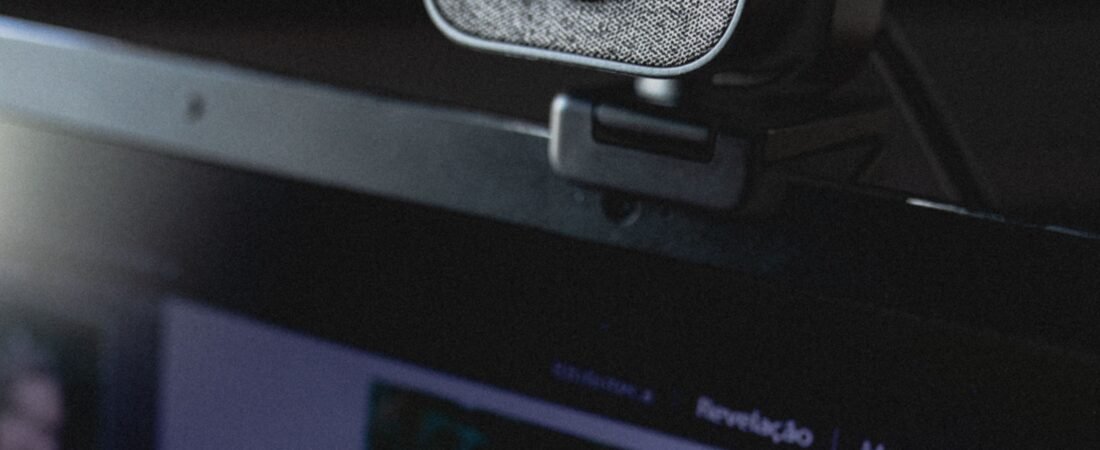
All you need to know about buying a webcam for remote teaching in Australia!
If you’re looking for a webcam for your remote teaching job, you’ve come to the right place! This guide is for teachers in Australia, so all prices are listed in Australian dollars (AUD).
If you’re short on time
Our top recommendations for webcams
Prices are shown in Australian dollars. As an Amazon Associate, we earn from qualifying purchases.
Best for everyday teaching
Logitech C920 HD Pro
This webcam offers 1080p at 30 fps, a 78-degree field of view and two microphones. It also has autofocus and a glass lens.
Price $115 AUD
Buy nowBest for entry-level teachers
EMEET C960
The EMEET C960 is a great budget option, with a 1080p camera at 30 fps and a 90-degree field of view.
Price $40 AUD
Buy nowShortlist: recommended webcams
Compare resolution, frame rate, field of view and microphones for the webcams we recommend.
| Webcam | Best for | Video | Field of view | Microphones | Price (AUD) | Link |
|---|---|---|---|---|---|---|
| Logitech C920 HD Pro | Everyday teaching | 1080p, 30 fps | 78 degrees | Two built in, up to 1m | $115 | Buy now |
| Logitech MX Brio | Streaming in rooms without natural light | 4K or 1080p; 30 fps at 4K, 60 fps at 1080p | 90, 78 or 65 degrees | Two beamforming mics, up to 1.2m | $180 | Buy now |
| Logitech Brio 500 | Clear video | 1080p, 30 fps | 90, 78 or 65 degrees | Two built in, up to 1.22m | $122 | Buy now |
| Logitech C920x | Everyday calls | 1080p, 30 fps | 78 degrees | Built in, up to 1m | $168 | Buy now |
| Logitech C922 Pro | Clear audio and video at a low price | 1080p, 30 fps | 78 degrees | Two built in, up to 1m | $75 | Buy now |
| EMEET C960 | Entry-level teachers | 1080p, 30 fps | 90 degrees | Two built in, up to 2.5m | $40 | Buy now |
| Razer Kiyo Pro | Wide adjustable field of view | 1080p, 60 fps or 30 fps with HDR | 80, 90 or 103 degrees | One omnidirectional mic; range not specified | $125 | Buy now |
| Elgato Facecam Neo | Video without a built-in microphone | 1080p, 60 fps or 30 fps with HDR | 77 degrees | No built-in microphone | $65 | Buy now |
What to look for in a webcam for teaching
For most teaching video calls, 1080p at 30 frames per second looks sharp on an average screen.
Video settings
Progressive scan
The “p” in 1080p stands for progressive scan, which means every line of each frame is drawn in one pass, from top to bottom. That makes 1080p 1,080 pixels tall and, at the typical 16:9 ratio, 1,920 pixels wide. You’ll find 1080p is the most common resolution for webcams.
Frame rate
Frame rate is measured in frames per second (fps). It’s how many still pictures the camera sends each second, so a higher number means smoother movement. 30 fps is standard for video calls and works well for someone talking to the camera. 60 fps looks smoother when you move around a lot, such as writing on a whiteboard, gesturing or turning to show something.
Resolution and frame rate ratios
With some webcams, you can prioritise resolution or frame rate over the other. For example, the MX Brio records 4K at 30 fps or 1080p at 60 fps. The Razer Kiyo Pro and Elgato Facecam Neo drop to 30 fps when HDR is turned on.
If you’re in a room without much natural light, a lower frame rate can make the room look brighter, as the camera has more time to collect light for each frame.
Field of view
Think about where you will be in relation to the webcam, such as sitting at a desk in front of a laptop, or standing at a whiteboard further back. That will help you choose the right field of view.
For reference, a laptop camera usually sits about 50 to 70cm from the person, which is roughly an arm’s length and about how far most people sit from a screen. At that distance, a 78-degree field of view covers about 80 to 115cm of width. That is enough to frame one person’s head and shoulders, with a little room to move. A 65-degree camera covers about 65 to 90cm at that distance, so it could feel tight if you lean or move around while teaching.
If you are teaching from a whiteboard or sit further back, look for a field of view around 90 degrees, which covers a width of 100 to 140cm.
Audio
Most webcams come with a built-in microphone.
Some applications, like Zoom, have built-in noise filtering, but it doesn’t always work. Keep in mind that keyboard clicks, fan noise or the neighbour’s dog could drown out your voice. If clear audio is your top priority, an external microphone or headset that sits closer to your mouth is worth considering.
Microphone types
A single microphone picks up sound from all around it, so it captures your voice along with the room. Two microphones, usually one on each side of the camera, can pick up sound from more angles and sound more natural.
Beamforming microphones use two or more microphones working together. Software combines their signals to focus on sound from the speaker’s direction and reduce sound from elsewhere. The MX Brio, for example, has dual beamforming microphones for noise reduction.
If you’re buying a webcam for its microphone, consider whether you’ll record lessons for later or present to a live class. For example, Logitech’s C920 has a built-in microphone that records speech clearly but may sound thin on playback.
Microphone range
Also consider the microphone’s range, especially if you’ll be standing at a whiteboard or further away from the webcam. For example, the MX Brio’s microphones pick up sound up to 1.2m away, so staying within that distance will help your voice come through clearly.
If students struggle to hear you when you’re using a webcam, a headset or external microphone is usually the simplest fix.
Mounting location
Almost all webcams come with adjustable clips. If you plan to clip the webcam to a thicker monitor, check that the clip is wide enough for your setup.
If you don’t have a monitor, you can buy a tripod or overhead mount for your webcam.
Mounting height
A webcam on top of a monitor often gives a better angle than one at laptop height.
For example, if you teach from a desk with your laptop open in front of you, the laptop camera often sits below eye level. Students then see more of your chin and the ceiling than your face. Clipping a webcam to the top of your monitor brings the lens closer to eye level. If you don’t have a monitor, use a tripod to get the right height.
Conclusion
Here’s a summary of the key points to consider before buying a webcam.
- Resolution and frame rate: 1080p at 30 fps is enough for most teaching video calls.
- Field of view: Match the field of view to how far you sit from the camera. Typically, 78 degrees is appropriate when sitting at a laptop.
- Mounting height: Aim to have your webcam angled from above your monitor (or at a similar height) rather than at laptop height.
- Audio: Some built-in microphones sound thin, so a separate microphone or headset is worth considering if clear audio matters most.
- Mounting: Check the mounting clip is thick enough for your monitor, or buy a separate stand.
- Price: Prices range from $40 for the EMEET C960 to $180 for the Logitech MX Brio.
Best budget options for teachers
Logitech C922 Pro
A 1080p camera at 30 fps with a 78-degree field of view and two built-in microphones. It’s a lower-priced option than the C920 HD Pro.
Price $75 AUD
Elgato Facecam Neo
A 1080p camera that records up to 60 fps and has a 77-degree field of view. It has no microphone, so you’ll need to pair it with a separate mic or use your laptop’s built-in microphone.
Price $65 AUD
Related guides
- What matters in a webcam: resolution, low light and microphones.
- Best small monitors: size, resolution and ports.
- Standing desks for all spaces: height range, motors and weight limits.
As an Amazon Associate, we earn from qualifying purchases. Prices are in AUD and can change, so check the product page before you buy.